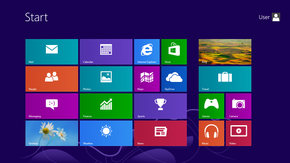
Hibernate your start menu-Windows 8

How to add hibernate into your start menu settings

Windows 8 tutorial

Windows 8 hidden tutorial

Windows 8 features

Windows 8 features

Windows 8 shortcut keys

Shortcut keys for windows 8

Thursday, April 18, 2013

Windows 8 Keyboard shortcuts

Hi,

Are you eagerly waiting to learn Windows 8 shortcut keys?


Here is the solution:

..

Leave your comments..To improve my section

Wednesday, April 17, 2013

How to install Whats app Android application to your mobile?

Hi,

As we are searching every time in Google. How to install Whats app android application to our PC or laptop.


Here I'm giving the solution:

Now you can run your most familiar android app on your laptop.

Requirements:

MAC OS or Windows OS(Win 7 or Win 8 )

Steps to proceed:

1. Click here to download compatible Windows 8 Blue stacks application
2. Install this into ur computer
3. It will take time to configure(10-15 min)
4. Once its done
5.You can Download Whats app into ur pc or lap.. Enjoy the Chatting with your friends


For window 7,XP, Vista users: Click here

For MAC users: Click here

Share your comment with me..


How to add a new Tile in Start Screen-Windows-8

Hello,

This will explain how to add a new tile into your startup screen.


Add a tile:

Windows 8 Start Screen and then right-click on any empty portion of that screen to reveal the All apps button in the lower right part of the display.


Right-click on a blank portion
Click the All apps button to reveal a list of all your installed apps


Navigate over to the application you would like to create an app for. In this case, I am going to add a tile for the World of Warcraft. Right-click the appropriate item in the list and you will be given several choices, one of which is to pin the application to the Start Screen


Right-click you app
Click the Pin to Start button and a tile for that application will be added to the Start Screen. 

Now you can see you rown tile added nin startup screen.

Leave your comment if its useful for you..


Tutorial Windows 8

Hi ,

Nice to see again.

We will discuss about the tutorial of windows 8:

When i started to use windows 8 . I haven't understand many features. So this will help to the Windows 8 newbies.

How to see the Right hand charm :

Gives you access to the Control Panel, shutdown/restart, etc) is called the "Charm".

Steps: Move your cursor into top of the right corner, You will see the Charm menu . Having options search, Device, Settings, Start ..Etc


How to Unpin the tiles from the start menu:

Right click on the tile which you what to unpin from the start menu.


Battery settings:
Click on Battery icon-> Advanced setting-> Select High performance. This setting will increase your system performance.

See the Progress application:

Move your mouse cursor into top of the Left corner 


Signout from the account:
Click on the Windows button.


Tricks:

1) From the Windows 8 menu, click Desktop to switch to the old Windows 7 style desktop
2) Right click on the desktop and choose New | Shortcut
3) When prompted for the Location of the item, enter in c:\windows\system32\shutdown.exe /p as shown below, then click Next


Windows 8 features

Hi Folks,

 Nice to see you again, This section will explain the new feature in Windows 8 Operating systems. 

  Why Windows 8? 
 Windows 8 is the best operating system. It has lot of new feature and Better user interface. User can see the all latest updates (Messaging , mail, Facebook,etc) in start menu tiles. 

  Features: Whats New in Windows 8: Windows 8 features a new lock screen, which includes a date and time display, along with the ability to display notifications from apps.(Lock your computer the you can see this(Win+L)) User accounts can be linked to a Microsoft account to provide additional functionality, such as the synchronization of user data,Xbox Live, Xbox Music, Xbox Video (for gaming and multimedia) and SkyDrive online storage.

 Internet explorer 10: Windows 8 ships with Internet Explorer 10, which can run as either a desktop program with full screen mode. and it has inbuilt flash player. 

 Next We will discuss about the task manager: 

 What is new in task manager: User can the which software is using how much resource What are the apps are loaded in Startup User can disable the Startup apps.

Windows store:
Windows 8 introduces a new style of application.
Windows Store apps. Apps can run either in a full-screen mode, or be docked to the side of a screen. hey can provide notifications and a "live tile" on the Start screen for dynamic content. Windows Store apps run within a new set of APIs known as the Windows Runtime.

 Secure boot: Windows 8 supports a feature of the UEFI specification known as "Secure boot", which uses a public-key infrastructure to verify the integrity of the operating system and prevent unauthorized programs such as bootkits from infecting the device. Now a days all Laptop manufacturing company is manufacturing 64bit machine only.